
One button
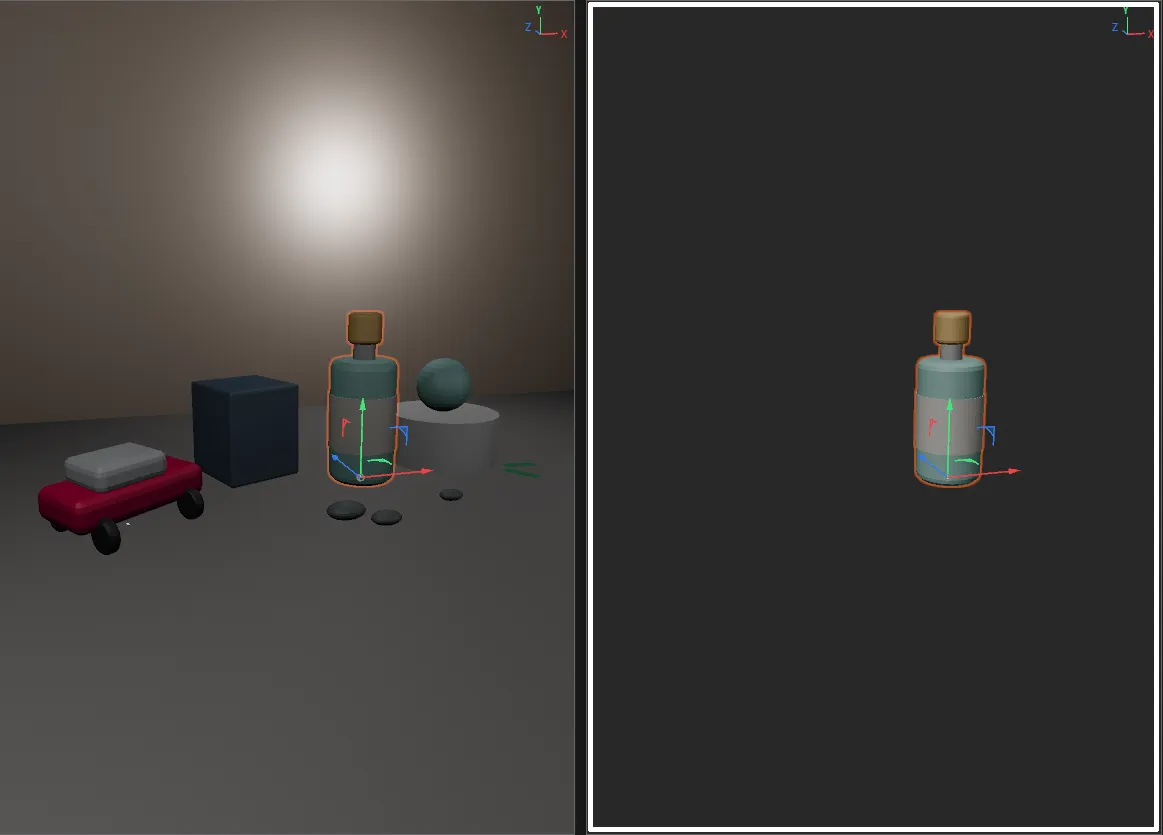
Select something and click SuperSolo. Everything else disappears from the viewport and the Object Manager. Click again and the scene is back as it was — layers and all.
One button
Select something and click SuperSolo. Everything else disappears from the viewport and the Object Manager. Click again and the scene is back as it was — layers and all.
Modifiers do the rest
Shift for a viewport-only solo, or to drop objects out of a solo. Ctrl to solo and frame. Alt to solo, frame and move the selection to the origin.
You always know
While a solo is on, the viewport background takes your solo colour, a white border runs round the view and the status bar says so.
Keep what matters
Put the Chroma SuperSolo Ignore Tag on a camera, a light rig or an HDRI and it stays visible through every solo.
SuperSolo runs in Cinema 4D 2024.2 or later, on Windows and macOS (Apple Silicon).