
Getting started
Install
Section titled “Install”The easiest way to install and license SuperSolo is the aescripts + aeplugins manager. It puts SuperSolo in Cinema 4D’s plugins folder for you.
Restart Cinema 4D after installing. SuperSolo runs in Cinema 4D 2024.2 or later, on Windows and macOS (Apple Silicon).
License it
Section titled “License it”The first time you use SuperSolo, the licence window opens. Enter your serial, or type trial
for a 14-day trial. The details are in
Licensing & support.
Find the button
Section titled “Find the button”SuperSolo is a single command, called SuperSolo. You will find it:
- on the Chroma menu in Cinema 4D’s main menu bar;
- in Commander (Shift + C) — type
SuperSolo; - in Window ▸ Customization ▸ Customize Commands…, where you can drag it into any palette.
SuperSolo is used with modifier keys held down, so a toolbar button is the most comfortable home for it. Drag it from Customize Commands into the palette beside your viewport.
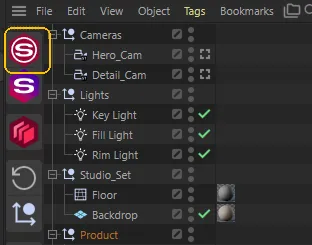
You can also give it a keyboard shortcut — see Keyboard shortcuts.
Your first solo
Section titled “Your first solo”- Select one or more objects in the Object Manager or the viewport.
- Click SuperSolo.
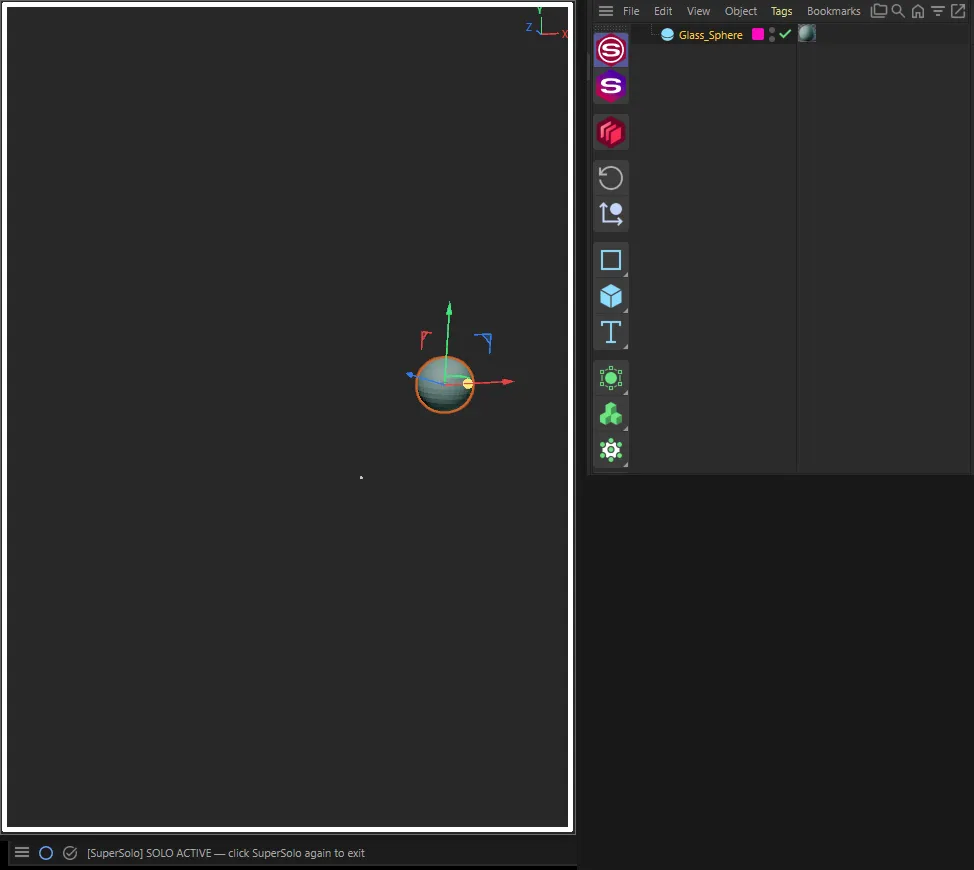
Everything else disappears from the viewport and the Object Manager. The viewport background takes your solo colour, a white border runs round the view, the SuperSolo button lights up and the status bar reads SOLO ACTIVE — click SuperSolo again to exit.
- Click SuperSolo again to end the solo. Every object returns to its own layer and visibility, exactly as before.
Next: Soloing covers the modifier keys, and Seeing a solo explains each of the signals.