
Licensing & support
Installing
Section titled “Installing”SuperSolo is sold through aescripts + aeplugins. The easiest way to install and license it is the aescripts + aeplugins manager, which installs SuperSolo into Cinema 4D for you. Restart Cinema 4D afterwards.
SuperSolo runs in Cinema 4D 2024.2 or later, on Windows and macOS (Apple Silicon).
Licensing
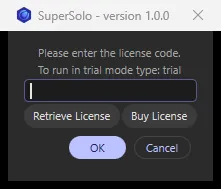
Section titled “Licensing”SuperSolo has no panel of its own, so the licence window appears when you need it: the first time you use SuperSolo without a licence, clicking SuperSolo opens it.
- Enter your serial to license SuperSolo.
- Enter
trialto start a 14-day trial. The trial is the full SuperSolo.
Once licensed, the same click goes straight on to solo your selection.
Moving to another computer
Section titled “Moving to another computer”Free up your serial from your account on aescripts.com (your licences are listed under My Account), then install SuperSolo on the new computer and license it there as normal.
When a trial or licence ends
Section titled “When a trial or licence ends”Starting a solo opens the licence window again. Ending a solo that is already on always works, so you are never left with a half-hidden scene.
The free Gumroad edition
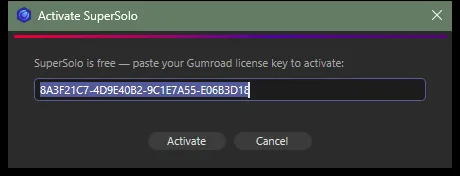
Section titled “The free Gumroad edition”If you downloaded SuperSolo free from Chroma’s Gumroad store, it is licensed with your Gumroad licence key instead. The first click on SuperSolo opens Activate SuperSolo: paste the licence key from your Gumroad receipt and click Activate. That edition has no trial — the key is free — and it updates through the Chroma Plugin Manager.
Support
Section titled “Support”Questions or problems? Open a support ticket from the
SuperSolo product page on aescripts.com — we reply fast. Lines
starting [SuperSolo] in Extensions ▸ Console are worth pasting into your ticket.
SuperSolo © Chroma Studios Ltd · chroma.london