
The Ignore tag
Some objects should never disappear: the camera you are framing through, a light rig, an HDRI sky, a floor. Give them the Chroma SuperSolo Ignore Tag and SuperSolo leaves them exactly as they are, whatever you solo.
Adding the tag
Section titled “Adding the tag”- Select the object in the Object Manager.
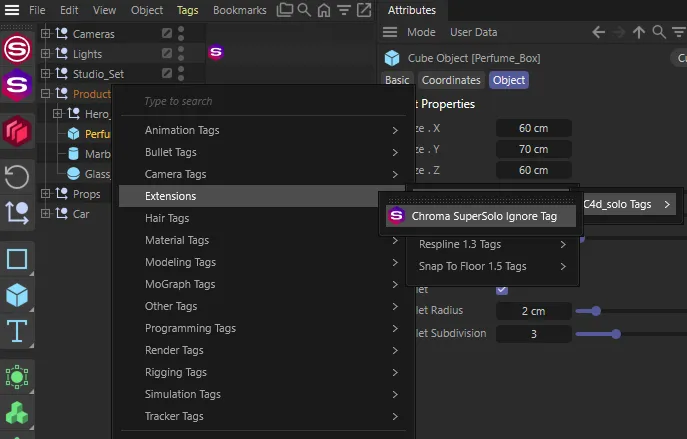
- Right-click it and choose the Chroma SuperSolo Ignore Tag from the tag menus — it is under Extensions ▸ Chroma Tags ▸ SuperSolo Tags. You can also find it by typing its name in Commander (Shift + C).
An object can carry one Ignore tag. It shows in the Object Manager as the gradient hexagon “S”.
Include Children
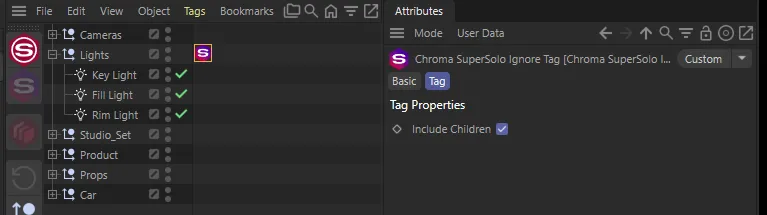
Section titled “Include Children”Select the tag to see its one option in the Attribute Manager:
- Include Children — off by default. Turn it on and the tagged object’s whole hierarchy is ignored as well.
This is the easy way to protect a rig: put one tag on the top null and tick Include Children.
What the tag does
Section titled “What the tag does”- In a full solo, an ignored object stays visible in the viewport, in the Object Manager and in renders.
- In a viewport-only solo, it stays visible in the viewport.
- New objects you add under an Include Children parent mid-solo are ignored too.
Tagged objects inside a hierarchy
Section titled “Tagged objects inside a hierarchy”An object is only as visible as its parents, so SuperSolo keeps the parents of a tagged object switched on during a solo, just as it does for a soloed child. In a full solo those parents are left out of the Object Manager. To protect a whole rig, put the tag on its root null and use Include Children for everything beneath it.
You don’t need the Ignore tag to solo a child: SuperSolo keeps a soloed object’s parents switched on by itself (see Hierarchies and materials). The tag is only for objects that should stay put whatever you solo.