
Soloing
Everything SuperSolo does comes from one command. What it does depends on whether a solo is already on, and on the key you hold as you click the button (or choose it from the menu).
| You hold | No solo yet | While soloed |
|---|---|---|
| nothing | Full solo of the selection | Ends the solo |
| Shift | Viewport-only solo of the selection | Takes the selection out of the solo |
| Ctrl | Full solo, then frames the selection | Frames the selection |
| Alt | Full solo, then moves the selection to the origin and frames it | Moves the selection to the origin and frames it |
On macOS, read Ctrl as ⌘ Cmd and Alt as ⌥ Option. Ctrl and Alt are covered in Frame and zero.
SuperSolo works on what is selected. With nothing selected, starting a solo does nothing.
Full solo
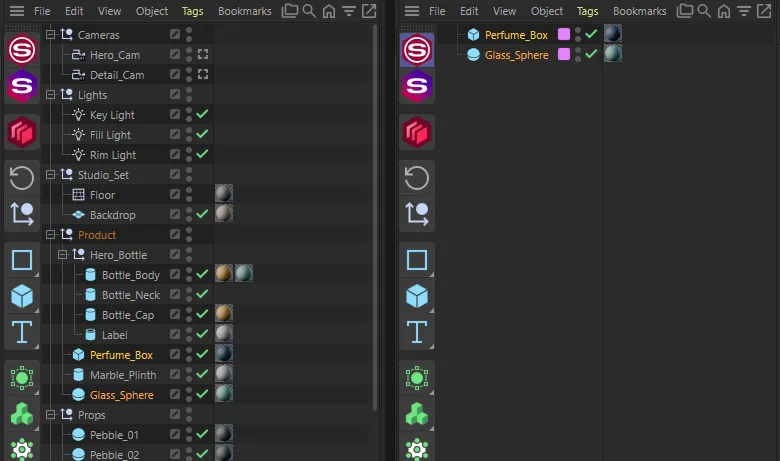
Section titled “Full solo”Select objects and click SuperSolo. Everything else is hidden in the viewport and in the Object Manager, so you are left with just the objects you are working on.
A full solo also leaves the hidden objects out of renders: render while soloed and you render only the solo. Objects outside the solo are switched off entirely while it is on — their generators, deformers and expressions don’t run until you un-solo.
Viewport-only solo
Section titled “Viewport-only solo”Hold Shift and click SuperSolo when nothing is soloed. The other objects are hidden in the viewport only — the Object Manager keeps the whole hierarchy, so you can still see and select everything. Renders are not changed by a viewport-only solo.
Use it when you want a clear view of a few objects but still need to work across the scene in the Object Manager.
Taking objects out of a solo
Section titled “Taking objects out of a solo”While soloed, select one or more of the soloed objects and Shift + click SuperSolo. They are hidden and the rest of the solo carries on. When you un-solo, they come back like everything else.
Adding to a solo
Section titled “Adding to a solo”Anything you create while soloed — a new object, a duplicate, a dropped-in asset, a new material — joins the solo automatically, so it is visible straight away.
To add an existing hidden object, un-solo and solo again with it included in the selection.
Ending a solo
Section titled “Ending a solo”Click SuperSolo with no keys held. Everything returns as it was: each object goes back to its own layer, with its own viewport and render visibility, and the viewport background gets its normal colour back.
Ending a solo always works, whatever state your licence is in.
One solo per document
Section titled “One solo per document”A solo belongs to its document. Switch to another open document and it is unaffected; switch back and your solo is still on. The viewport colour and the button follow whichever document is active.